just:in Mac v3.5 Getting Started
Table of Contents

live:cut is integrated into just:in starting with version 3.0. There is no separate application anymore. Please follow the instructions here and then refer to the live:cut v3.5 User Manual.
Important: Before you Install
just:in comes as a disk image (DMG). To open the disk image the Security settings of the system must be changed.
- Open the System Preferences.
- Go to Security & Privacy.
- Click on the General tab.

- Unlock the Preference Pane.
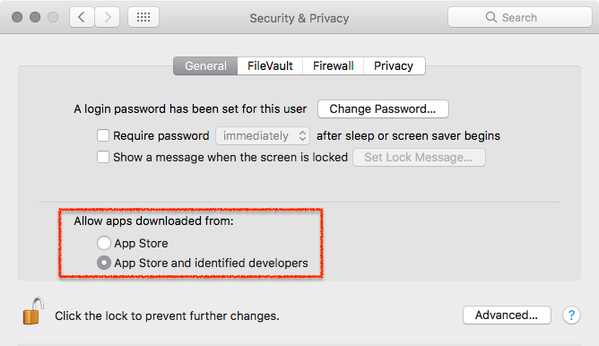
- Change the setting to Allow apps downloaded from App Store and identified developers.
- You can now head to the point Download & Installation below.
Further reading (external link): → macOS Sierra: Open an app from an unidentified developer
1. Download & Installation
- → Download just:in from our Online Helpdesk (free account required).
- Extract the downloaded ZIP archive.
- The just:in disk image will show up.
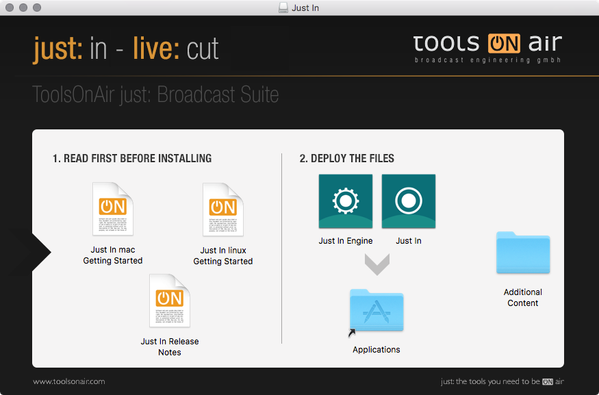
- Copy Just In and Just In Engine to the Applications folder.
- If desired, add the Applications to your Dock.
2. Start just:in Engine
- Got to the Applications folder.
- Start Just In Engine.
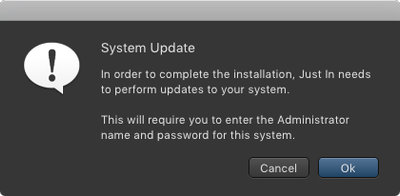
- Accept the System Update dialog to continue.
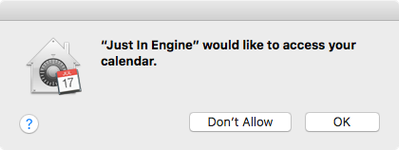
- Allow just:in Engine to access the Calendar (this is required for Scheduled Recording).
just:in Engine displays the Preferences window automatically.
If just:in Engine has been launched and/or configured previously on this system, the preferences window needs to be opened manually. Go to the menu Just In Engine → Preferences (shortcut: command + comma).
- Unlock the Preferences in the lower left corner by pressing the Make Changes button.
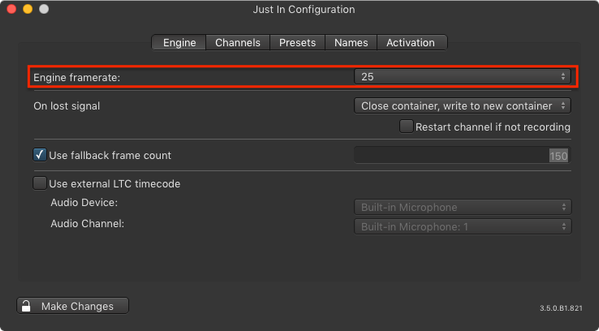
- Select the desired Framerate in the Engine tab.
- Go to the Channels tab and configure the desired Channels. Depending on the Video device(s) the Channels tab may look different.
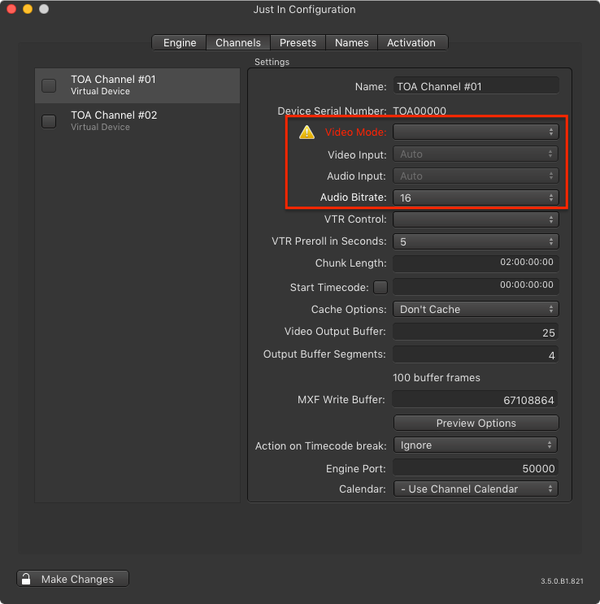
- Enable the Channel(s) in the Channels tab by clicking the corresponding checkbox in the Channels list.

- The Diagnostics window should appear. You can always show it by using the menu Window → Diagnostics.

3. Start the just:in User Interface
- Go to the Applications folder and open the just:in Application.
- Make sure just:in Engine is running.
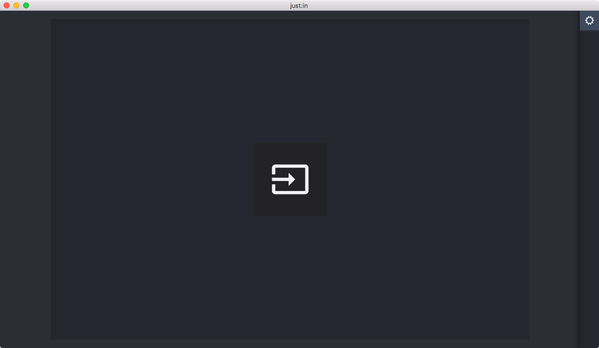
- The just:in main window appears.
4. Connecting to a Channel
Click the icon in the center of the main window to show the Connections Window which allows you to connect to a Channel.
A Channel is hosted by a just:in Engine, so – at this point – it is mandatory that one or multiple Channels are configured and running, otherwise you cannot connect to a Channel.
Enter the IP-Address and the Port of a Mac Channel and press the Add button. Repeat this for every Channel you would like to connect to from this user interface.
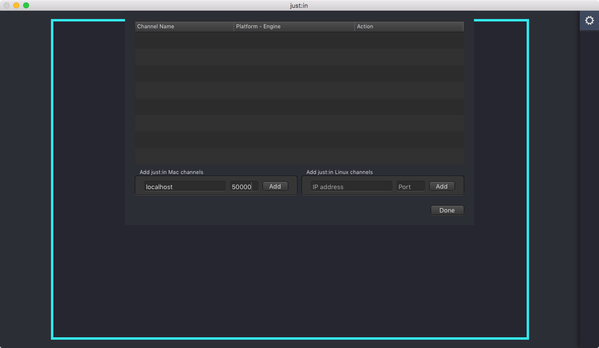
In a default test setup (i.e. Engine and User Interface are running on the same machine) you may use the following data:
IP-Address: localhost
Port: 50000- Press the Connect button to connect to a Channel.
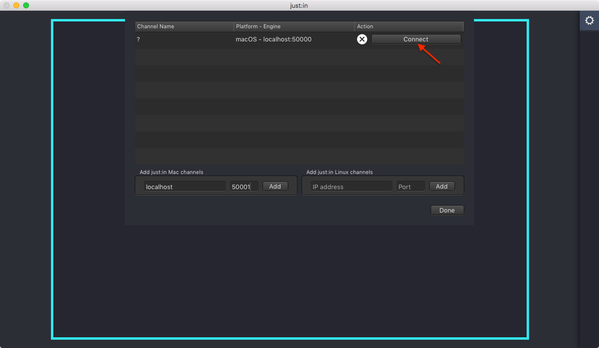
- Upon successful connection just:in displays the Channel Preview.
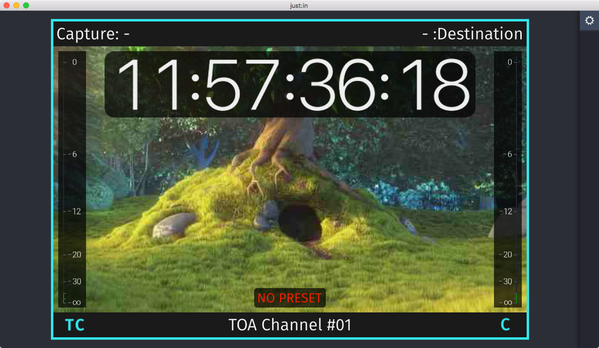
- The Getting Started ends here. For further information please refer to the respective User Manuals.
Starting a Recording
Before starting any Recordings you need to add at least one Capture and one Destination Preset. Refer to the respective User Manuals for further information.