Graphic Elements (RT Graphics, Images and Videos on FX Layers)
- Thomas Staiger
- Manuel Grund
- Georg Deisting
Owned by Thomas Staiger
just:live & just:play support various graphic files. This chapter lists how they will be handled by the Playout software.
JPEG and PNG Images

- Still images can be directly used in just:live & just:play, for example as a corner logo.
- Still images will be scaled to the resolution of the Playout. Use images that are properly sized for whatever output display mode has been selected for the specific Channel.
- When using PNG images, the Alpha Channel is supported.
- Still images are played out “as is” therefore, it is not possible to fade them in/out.
Composition Builder Compositions

- Composition Builder compositions are realtime graphics. → Learn more.
- The Duration is defined in the composition but can be changed in the Timeline of just:play.
- Stopframes are defined in the composition and affect the duration in just:live & just:play.
- Published input ports are shown in the Inspector according to the given permissions in the composition.
- The Thumbnail is loaded from the Composition.
Quartz Composer Compositions

- Quartz Composer Compositions are realtime graphics. Quartz Composer is a realtime graphics framework by Apple to visually create animated graphics.
- The Duration and Stopframes are defined in the TOA Stopframes patch in the QTZ file.
- Published input ports are shown in the Inspector.
- No Thumbnail (unless thumbnail is specified, see below)
- Not every Quartz Composition works with just:live/just:play. ToolsOnAir provides no support for custom QTZ Plug-Ins/patches.
- Illegal Quartz Composer Patches: Not all Quartz Composer patches are supported by the Just Out rendering engine, particularly the JavaScript patch. If a Quartz Composer or Composition Builder composition with such a patch is dropped into a Playlist, a warning will be displayed, and the file will be rejected.
- Please contact ToolsOnAir if you need customized graphics development.
Thumbnails for Quartz Compositions
You can specify a thumbnail image for a QTZ composition.
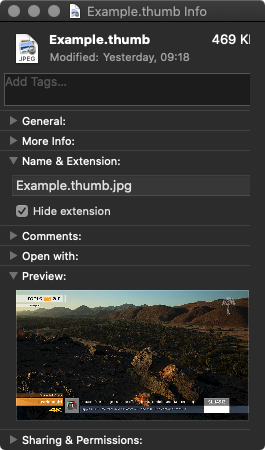
- Save a JPEG or PNG image in the same folder as the QTZ file
- In the Finder open the info dialog of the image file.
- Change the ".jpg" or ".png" extension to “.thumb”.
- Accept the warning that will be shown.
- The file's preview icon should now have turned to a generic white file icon.