11. just:connect UI Overview (v2.0)
Here is an overview of the just:connect user interface:
To make changes you must unlock just:connect. Click the Make changes button in the menu bar, then enter the administrator credentials of the machine.
Please be aware that a misconfiguration of just:connect may lead to unexpected results.
| These chapters focus on all aspects of the configuration. The following configurations will be done in Expert User mode. |
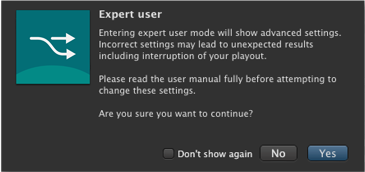
just:connect can be switched into Expert User mode by clicking the Expert User button in the menu bar. | |
1 Menu Bar: Gives you direct access to the most important functions of just:connect: creating new channels, importing/exporting full day rundowns and unlocking of the user interface to make changes. If you need help in the just:connect interface, the search field offers you a direct "interactive" link to this user manual. 2 Channel View: Lists all channels managed by this just:connect and shows an overview of the status of each channel. 3 Configuration Area: Here you can change the setup of your channel including the layer assignment, the setup of the just:out engines and many other options. |